Husarion snaps — your robot in a few commands
Husarion ships a family of snap packages that let you install, configure, and update your robot's software with single-line commands. Whether you're evaluating a Husarion robot for your next project or you just unboxed one, snaps are the fastest path from "robot on the desk" to "robot driving around your lab."
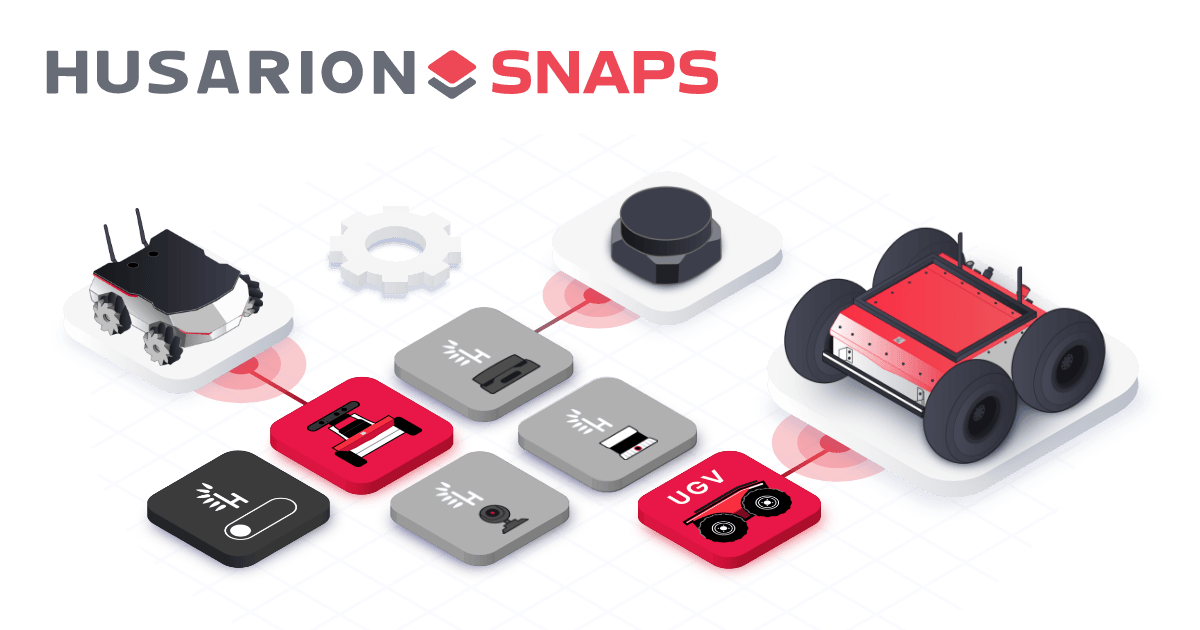
This article covers what snaps give you, which ones we publish, and how to get your robot up and running.
Why snaps?
Every Husarion snap is a self-contained application bundle — the ROS 2 nodes, their dependencies, and the runtime environment, all sealed in one package. In practice that means:
- One-line install.
sudo snap install rosbot— that's it. - No dependency conflicts. Snaps don't touch your system libraries.
- Automatic updates. Your robot pulls new software in the background. No more drift between field units.
- A consistent API across every snap. Once you've learned one, you've learned them all.
That last point is the one we invest in most. Every Husarion snap exposes the same <snap>.start / <snap>.stop apps and the same snap set <snap> ros.* configuration keys, so switching from the driver to the lidar to the camera feels identical.
The snaps you'll use most
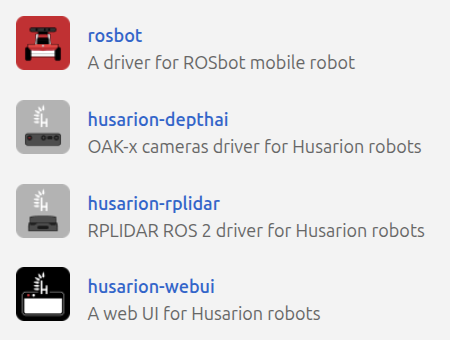
The tile colour tells you where each snap is meant to run:
- 🟥 Red — robot drivers, tied to specific hardware (the robot itself).
- ⬜ Gray — sensor drivers, can run on any computer on your ROS 2 network.
- ⬛ Black — user-facing tools like the WebUI, also run wherever you want.
The full catalogue lives at snapcraft.io/publisher/husarion. If you're using any Husarion sensor, there's a good chance we already package it.
Working with a snap
Every Husarion snap follows the same three-step flow: install → configure → run.
sudo snap install <snap>                 # 1. install from the store
sudo snap set <snap> <key>=<value>       # 2. configure (if needed)
sudo <snap>.start                        # 3. run
Stopping or restarting is equally uniform — sudo <snap>.stop, sudo <snap>.restart. Once you know this pattern, every Husarion snap works the same way.
Example: driving a ROSbot
The rosbot snap is the most involved one because it also flashes the robot's firmware, so it's a good illustration of the full flow:
| Step | Command | What happens |
|---|---|---|
| 📦 1 | sudo snap install rosbot | Pull the snap from the store |
| ⚙️ 2 | sudo /var/snap/rosbot/common/post_install.sh | One-time setup — e.g. connecting snap interfaces like USB access |
| 🔧 3 | sudo snap set rosbot driver.robot-model=rosbot-xl | Configure snap parameters (hardware variant, drive mode, sensors…) |
| ⚡ 4 | sudo rosbot.flash | Flash firmware to the onboard microcontroller |
| 🚀 5 | sudo rosbot.start | Start the driver — the robot is now ready to accept commands |
Not every snap needs steps 2 and 4. A sensor snap like husarion-rplidar is just install → configure → .start. When a snap does need one-time setup — for example connecting USB interfaces that auto-connect can't handle — it ships a post_install.sh under /var/snap/<snap>/common/ that you run once. Step 4 (rosbot.flash) is more specific: it only applies to snaps that talk to an onboard microcontroller.
Want to drive around? Plug in a Logitech F710, set it to X-mode, and hold LB while pushing the stick. No gamepad handy? Run sudo rosbot.teleop for keyboard control from the terminal.
One config, every snap
Here's where the uniform API really pays off — every Husarion snap reads the same four settings under snap set <snap> ros.*. Set them once in the driver, copy them into every other snap, and you never touch .bashrc again.
-
🌐
ros.domain-id— yourROS_DOMAIN_ID(0–232). -
🏠
ros.localhost-only— restrict ROS 2 traffic to the local machine (0or1). -
🏷️
ros.namespace— add a prefix to every topic and transform (handy for multi-robot setups). -
📡
ros.transport— pick a middleware configuration. Canonical tokens are<kind>/<profile>; the two at the bottom hand control to the middleware's own stock defaults:Profile Scope Middleware Best for fastdds/udpLAN FastDDS Default — talking to other machines fastdds/udp-lolocalhost FastDDS Bench testing without network traffic fastdds/shmsame host FastDDS + shared memory Lowest latency when everything runs on one box cyclonedds/udp-lolocalhost Cyclone DDS Bench testing, Cyclone flavour zenoh/defaultLAN Zenoh (peer mode) Modern peer-to-peer transport — robust to discovery storms, no DDS quirks under root zenoh/shmsame host Zenoh + shared memory Co-located nodes — skips the loopback TCP copy for payloads ≥ 3 KiB rmw_fastrtps_cppLAN FastDDS (stock defaults) FastDDS defaults often misbehave under snap's root context — prefer fastdds/udporfastdds/shmrmw_cyclonedds_cppLAN Cyclone DDS (stock defaults) Usually fine under root Profile files live in
/var/snap/<snap>/common/rmw/<kind>/— you can edit them or drop in your own. For thezenoh/*profiles a matchingrmw_zenohdrouter config underrmw/zenoh-router/is auto-paired by name (zenoh/default↔zenoh-router/default-router,zenoh/shm↔zenoh-router/shm-router), so co-located nodes only need SHM enabled on one side of the table.The legacy short aliases —
udp,udp-lo,udp-lo-cyclone,shm— still work, but new setups should use the canonical form.
Example — two ROSbots on the same network, each in its own namespace:
sudo snap set rosbot ros.domain-id=42 ros.namespace=robot_a
Every snap on the same robot needs the same ros.* settings. Instead of re-typing the flags for each one, copy one snap's settings into the others:
sudo snap set <target-snap> $(xargs -a /var/snap/<source-snap>/common/ros_snap_args)
For example, copy the ROSbot driver's config into the lidar and camera:
sudo snap set husarion-depthai $(xargs -a /var/snap/rosbot/common/ros_snap_args)
sudo snap set husarion-rplidar $(xargs -a /var/snap/rosbot/common/ros_snap_args)
Everything on the robot stays in sync, including after you change something later.
Day-to-day operations
A handful of commands usable on any Husarion snap:
snap logs <snap> -f                  # follow the output (e.g. snap logs rosbot -f)
sudo snap refresh <snap>             # pull the latest version on demand
sudo snap refresh --hold <snap>      # freeze updates for production fleets
sudo snap refresh --unhold <snap>    # resume updates when you're ready
By default the snap daemon checks for refreshes a few times a day, so you usually don't need to run snap refresh manually. If you've validated a specific version in the field and want to stay on it, --hold freezes the snap until you explicitly unhold it — handy when every version bump should be a deliberate decision, not a surprise.
Where to go next
Each snap has its own page on the Snap Store with a full parameter reference — search for husarion on snapcraft.io/publisher/husarion to find them. The practical takeaway: with snaps, getting a Husarion robot from shipping box to driving is a handful of commands, and keeping a fleet of them up to date is essentially free.