Husarion UGV Configurator
Husarion UGV Configurator
Husarion UGV Configurator is a Text User Interface (TUI) application designed to simplify the configuration and management of Husarion UGV platforms, including Panther and Lynx. It provides an intuitive, terminal-based interface for updating robot parameters, managing driver versions, debugging, and performing maintenance tasks.
Getting Started
Installation
For new robots, the configurator is pre-installed on the built-in computer. If not, follow the Installation Guide. You can also install it on your own computer to manage the robot remotely.
Launching the Configurator
-
Access the Built-in Computer:
Log in to the robot’s built-in computer:
my_device@user:~$ssh husarion@10.15.20.3 -
Launch the Configurator:
husarion@husarion:~$cd husarion_ugv_configurator
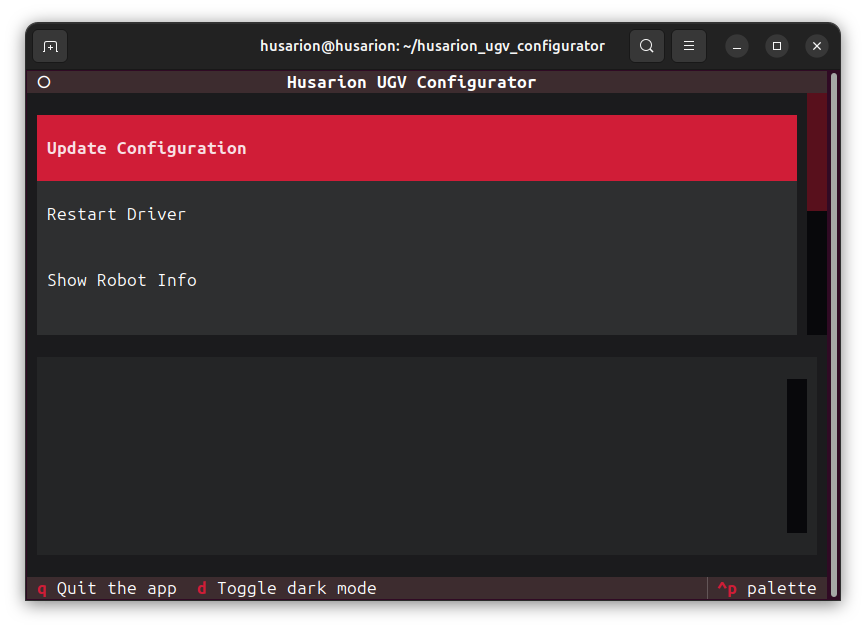
just husarion_ugv_configuratorThe main window of the configurator will appear.
Usage
Available options in the main menu:
- Update Configuration: Easily modify controller parameters (e.g., velocity limits), add new hardware components, create custom animations, and more.
- Show Robot Info: View detailed information about the robot platform and system status.
- Driver Logs: Access, view, and save real-time driver logs for troubleshooting and diagnostics.
- Update Driver Version: Switch and update driver versions across different ROS 2 distributions.
- Restore Default Configuration: Restore default configuration files using either soft or hard reset modes.
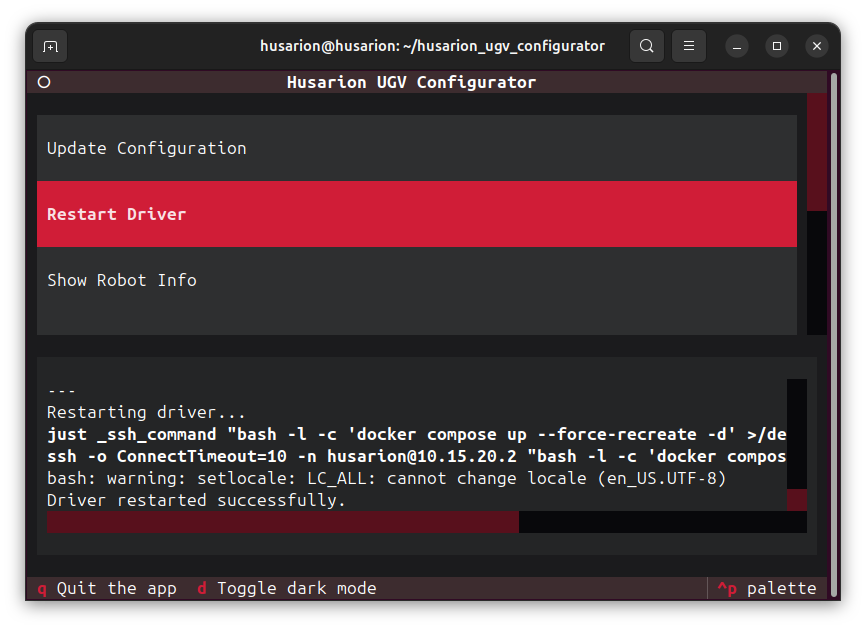
- Restart Driver: Apply changes by restarting the robot driver.
Updating configuration
- Configuration files are located in the
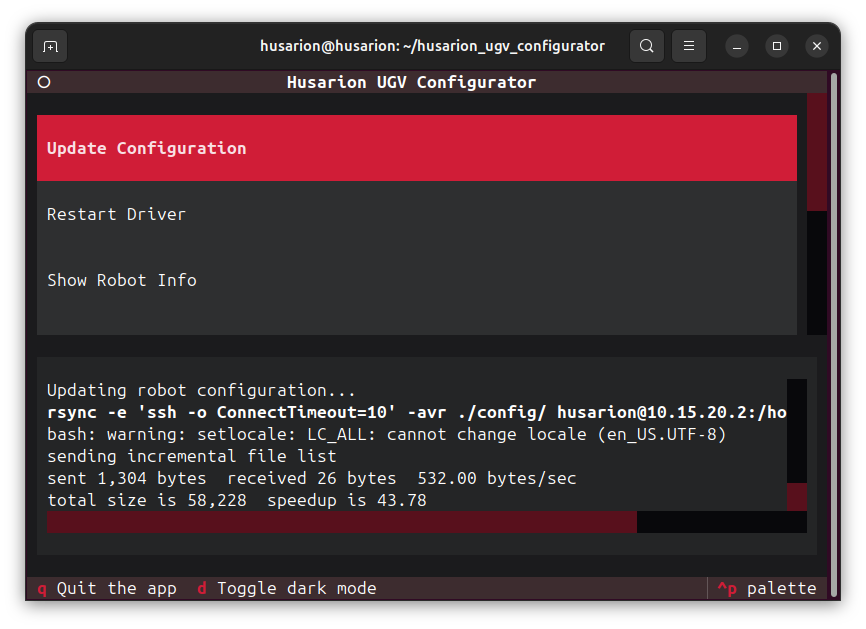
configdirectory insidehusarion_ugv_configurator. To change parameters, edit the relevant files in this directory. See ROS 2 Configuration for examples of configurations that can be adjusted to suit your needs. - After you have modified configuration files, launch the configurator and press Update Configuration.
- To apply changes to the robot, press Restart Driver.
Accessing Robot Information
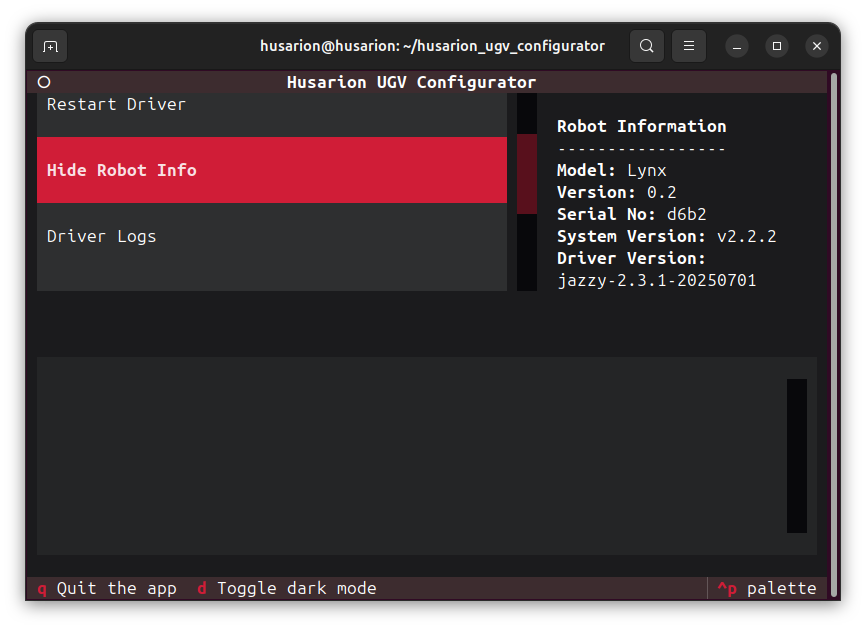
Press Show Robot Info to display platform details such as robot model, version, serial number, system and driver version.
Debugging Driver
Press Driver Logs to view real-time logs for the robot driver.
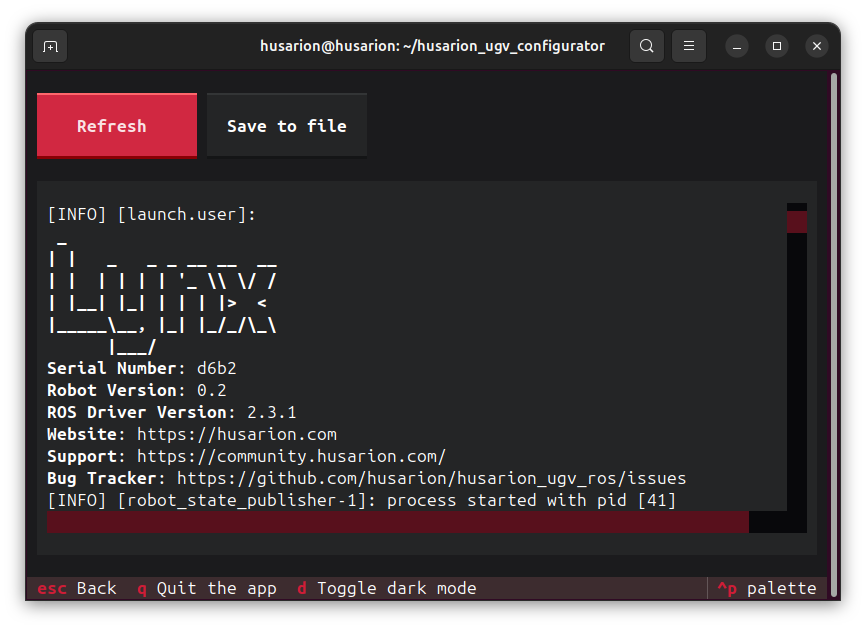
Use Save to File button to export logs for further analysis or reporting issues.
Driver Version Management
- Use Update Driver Version to change current driver version.
- Select the desired ROS 2 distribution and driver version.
- After updating, restart the driver to apply changes.
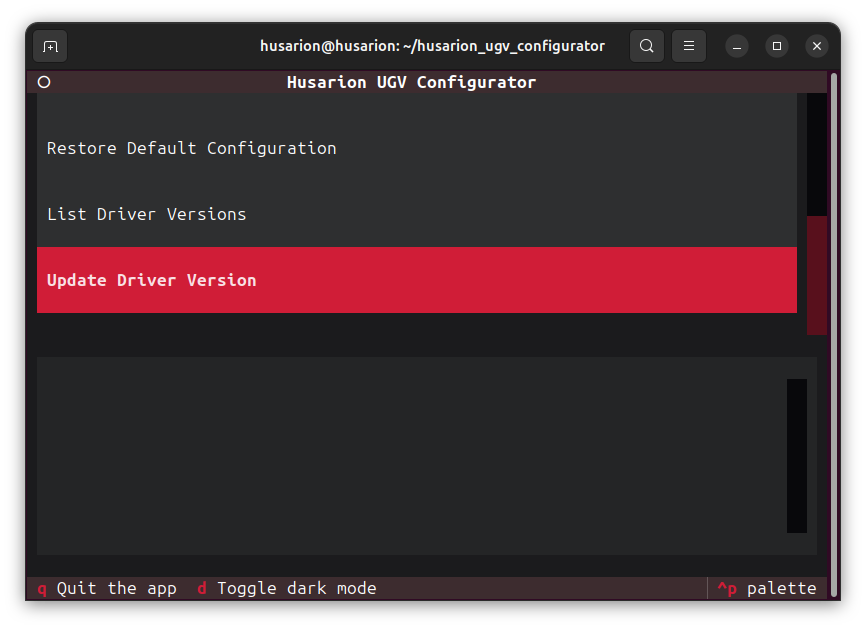
When switching between ROS 2 distributions, ensure system compatibility and consider restoring default configuration files.
Restoring Configuration
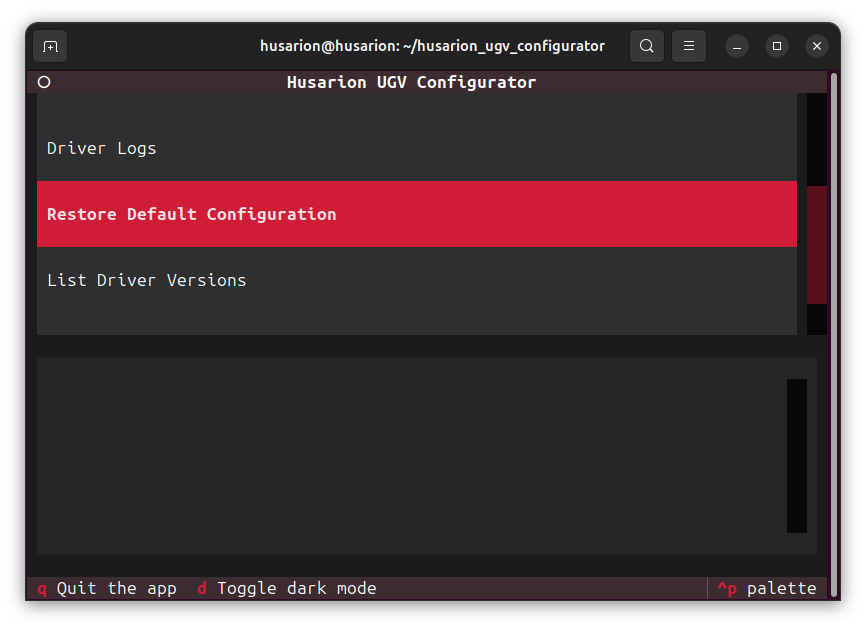
- Use Restore Default Configuration to reset configuration files.
- Choose between hard or soft modes. The hard mode will remove all files from the
configdirectory and copy default ones. The soft mode will overwrite default configurations files, but will preserve files added by the user in theconfigdirectory. - Confirm the restoration when prompted.
Restart Driver
Use Restart Driver to apply changes like configuration updates or driver version changes.